My screenshots stopped uploading. I hit Ctrl+V in a note, waited for the Imgur link, and got nothing. So I opened the plugin’s GitHub, and found the maintainer had filed the bug himself and then labeled it wontfix. That is how I ended up storing image attachments locally in Obsidian, and why I now think remote hosting was the wrong default the whole time. This is my setup for Obsidian local image attachments, plus the settings that quietly wasted an evening.
Everything below comes from a working vault, not a clean-room test:
Kubuntu 26.04 (KDE Plasma 6.6.5)
Obsidian 1.12.7
Custom Attachment Location 11.2.0
Local Image Compress 1.0.3
Vault: ~/obsidian
The Imgur plugin didn’t break. Imgur’s auth API did.
The failure isn’t in the Obsidian plugin. It’s upstream. Imgur’s OAuth flow stopped working: the authorize URL (https://api.imgur.com/oauth2/authorize) now returns “Error (1024)”, and the page for registering a new client (https://api.imgur.com/oauth2/addclient) just redirects to the Imgur homepage. You can’t authenticate, and you can’t even mint new credentials to try.
The plugin’s maintainer opened issue #106 about exactly this on August 2, 2025, and labeled it wontfix. There’s nothing to fix on the plugin side. The same breakage has hit other Imgur clients: ShareX users ran into the identical Error 1024, and those reports were closed as cannot-fix for the same reason — the failure is Imgur’s, not the client’s. Unless Imgur restores or replaces the broken flow, there is no path back to authenticated uploads.
That leaves anonymous uploads, which are worse than they sound. Without an account, you can’t list or delete anything unless you personally saved the deletehash at upload time. Imgur now deletes old content that isn’t tied to an account, and every upload gets a public URL. So your images are public and impermanent at the same time: anyone with the link can see them, and one day the link might 404.
Why “private remote image hosting” is a contradiction
Here’s the part that changed how I think about this. Markdown’s  syntax gives you a URL, alt text, and an optional title. It gives you no portable way to attach an authorization header. Which means any image that renders from a plain Markdown file has to be reachable without auth, by definition. That isn’t an Imgur quirk. Imgur, Cloudflare R2, a NAS behind your router: same rule. The only thing that changes between them is how hard the URL is to guess.
Google Photos fails the same test from the other direction. Its media base URLs expire after about 60 minutes, so they can’t serve as permanent image URLs in a note. The Picker API goes further and wants an OAuth bearer token on the media request itself, which plain Markdown has no way to supply. A community plugin can work around that, but anything that renders reliably ends up saving a copy into your vault, which is local storage with extra steps.
One honest exception: images that are meant to be public, like blog cover art. There the calculus flips, object storage such as R2 is the right call, and there’s no privacy problem because the image was always going to be public. If you go that route, put a custom domain (img.example.com) in front so you can swap the backend later without rewriting every link.
So “private remote image hosting” isn’t a product you’re failing to find. Be precise about what you want — private images that stay embedded in plain, portable Markdown for good — and the combination falls apart. You can bolt workarounds onto it: expiring signed URLs, a local proxy that holds the credentials, a plugin that authenticates and fetches for you. Each one trades away permanence or portability, and the plugin route puts a copy in your vault anyway. If privacy is your bar, local storage is the only clean answer, and killing link rot comes free with it.
Storing Obsidian image attachments locally: the setup
Seven steps, then a checklist to prove it worked.
1. Turn the Imgur plugin off
Settings → Community plugins → toggle the Imgur plugin off. Until you do, it keeps intercepting every paste and you’ll wonder why nothing lands locally.
You don’t need to uninstall it. The Imgur links already sitting in your notes are plain Markdown URLs and render fine without the plugin.
2. Install two plugins
- Custom Attachment Location decides where attachments go and what they’re named.
- Local Image Compress shrinks PNG and JPEG files inside the vault, with no cloud or API involved. Read its workflow before you lean on it: it writes compressed copies into its own output folder, and it replaces originals only when you run its move command or turn on auto-move, and only after writing backups. Installing it does not silently shrink anything.
3. Set the path and filename
One note before you compare these against your own screen. Custom Attachment Location has reorganized its settings across major versions, and its README currently documents an older layout in which several of these are separate toggles rather than dropdowns. The names below are what 11.2.0 shows me, and where the older layout differs I’ve noted the mapping.
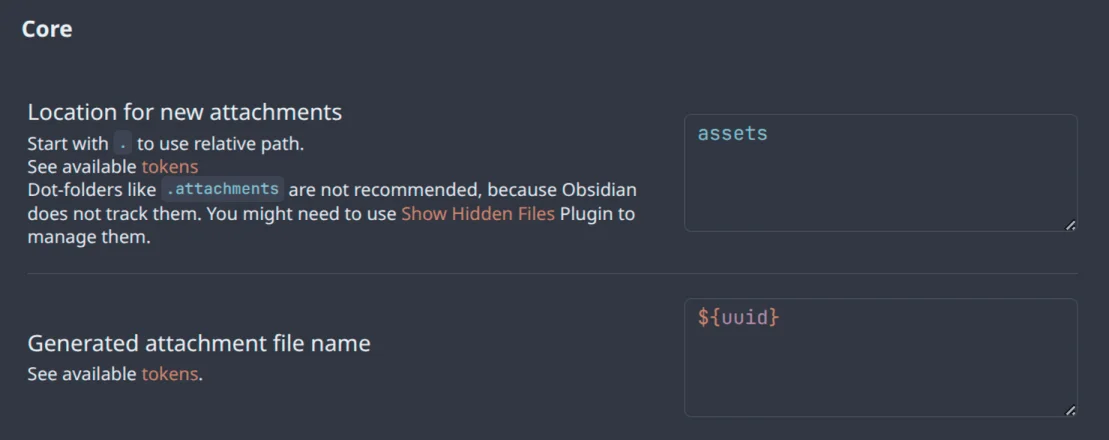
| Setting | Value |
|---|---|
| Location for new attachments | assets |
| Generated attachment file name | ${uuid} |
No leading slash — a bare assets sits at the vault root. Start the path with . (as in ./) if you want it relative to the note instead. If you’d rather have the UUID without hyphens, the token takes options: ${uuid:{hyphens:false}}.
Both of those are load-bearing, not cosmetic.
One assets folder at the vault root. When the attachment folder is global, moving or renaming a note never changes an image’s path. There’s no per-note attachment folder to drag around behind it.
UUID filenames exist because my note titles are in Korean. A ${noteFileName}-based scheme produces filenames with Hangul and spaces, which then trip over URL encoding, NFC/NFD normalization differences, and sync. A UUID sidesteps all of that in one move. (I hit the same class of Korean-text papercut when tuning content width and fonts for Korean notes.)
4. Set the renaming, deletion, and conversion behavior
Renaming
| Setting | Value | Why |
|---|---|---|
| Attachment rename mode | All | Covers every attachment, not just pasted screenshots |
| Should rename attachment folders | OFF | Only acts when the location contains ${noteFileName}. Mine doesn’t |
| Should rename attachment files | OFF | Only acts when the file name contains ${noteFileName}. Mine doesn’t |
On the older settings layout there’s no rename mode dropdown and three toggles do the same job: leave Rename only images off so every attachment type is covered, and turn on both Rename pasted files with known names and Rename attachments on drag&drop.
All matters more than it looks. On Only pasted images the plugin renames only when raw PNG content comes straight off the clipboard, meaning a screenshot then Ctrl+V. Drag-and-drop from a file manager, a JPEG on the clipboard, and file copy-paste all slip through and keep their original names. The path applies to every attachment either way; only the rename is filtered. That asymmetry is what makes it hard to catch, because every file is still in the right folder and nothing looks broken. Only pasted images is defensible if you attach PDFs whose original names carry meaning. (Pasting is its own adventure on Linux; I wrote up why Claude Code wouldn’t paste images on Wayland separately.)
The two ${noteFileName} rows are worth understanding rather than copying. They exist to keep a note-name-derived folder or file name in sync when the note gets renamed. Because assets and ${uuid} never reference the note name, there’s nothing to keep in sync, so both are inert in this configuration. Note renames stay safe for a simpler reason: the attachment doesn’t have to move at all, and Obsidian’s own Automatically update internal links handles the link text.
Deletion
| Setting | Value |
|---|---|
| Empty attachment folder behaviour | Delete with empty parents |
| Should delete orphan attachments | OFF |
Orphan deletion stays off because Obsidian already does this job (step 7), and running both means you can never tell which one removed a file. Pick one mechanism. I picked the built-in.
Images
| Setting | Value |
|---|---|
| Convert images to JPEG mode | None |
Converting code and UI screenshots to JPEG smears ringing artifacts around the text. Screenshots stay PNG. Local Image Compress can still bring the size down afterwards, but know what it is: a quality setting you choose, not a free lossless win. Its own guidance points at roughly 65 to 80 for PNG, and text-heavy screenshots are the case to stay conservative with.
5. Hide /assets in the file explorer
/assets is noise in the sidebar. Hide it in the UI layer, not the filesystem layer.
mkdir -p ~/obsidian/.obsidian/snippets
cat > ~/obsidian/.obsidian/snippets/hide-assets.css <<'EOF'
/* hides the /assets row in the file explorer, and everything under it */
.nav-folder-title[data-path="assets"],
.nav-folder-title[data-path="assets"] + .nav-folder-children {
  display: none;
}
EOF
Then Settings → Appearance → CSS snippets → click the refresh icon (↻) → toggle hide-assets on.

That refresh is what makes a newly created file appear in the list, and skipping it is where I’d bet most people stall. There’s no error and no empty state, just a list that doesn’t have your snippet in it. Once the snippet is enabled you can stop pressing it, since Obsidian watches the file and applies edits when you save.
The first selector hides the folder’s title row, the second (+ .nav-folder-children) hides the files under it, so the whole tree stays out of the way without touching where anything actually lives. Match the exact data-path. A substring selector like *="assets" would also swallow a note named assets-planning.md.
One side effect worth knowing: Obsidian’s list virtualization still counts hidden rows, so a very large /assets can make explorer scrolling feel slightly off.
Why not skip all of that and name the folder .assets so it hides itself? Because Obsidian’s normal Vault API and index don’t cover files inside dot folders, with .obsidian as the special case. A plugin can reach them through the lower-level adapter API, but ordinary attachment handling doesn’t. Link to an image in .assets and you get “not found”; point the attachment folder setting at it and files are neither copied nor embedded. Neither failure produces an error. The plugin’s own settings screen warns against it.
6. Exclude /assets from search
Settings → Files and links → Excluded files → Manage → type assets → Add → Save.
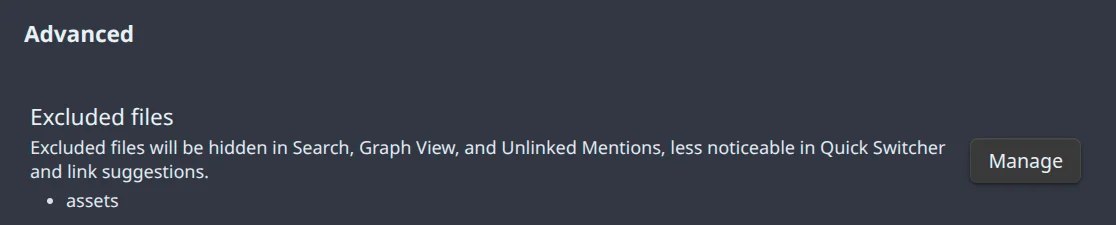
Two things trip people here. Nothing is stored until you press Add; typing the value and closing the dialog does exactly nothing.
And skip the leading slash here. This field wants assets; Obsidian’s internal paths look like assets/foo.png, and wrapping a value in slashes (/.../) turns it into a regex. Type /assets and it’s neither a valid path nor a closed regex, so search keeps happily returning every image and nothing tells you why.
To confirm it took, search for the filename of an image inside /assets. If it stops coming back, you’re done.
7. Make deletion ask, and make trash recoverable
Settings → Files and links → Trash section.
| Setting | Value |
|---|---|
| Delete attachments when deleting files | Ask each time |
| Deleted files | Move to Obsidian trash (.trash folder) |
Obsidian has cascade delete built in. Delete a note, and any attachment it references that nothing else uses goes with it. That’s the behavior I want, but not silently. Ask each time puts the decision in front of me before it happens, and .trash gives me a way back when I wave it through anyway.
This is also the mechanism I meant in step 4 when I turned the plugin’s own orphan deletion off. One of these, not two.
Check it works
Six checks, in order. Each one is testing a specific setting, not just poking at the app.
- Paste. Screenshot, then
Ctrl+Vinto a note. It should land inassets/under a UUID name. If it lands anywhere else, the Imgur plugin is probably still enabled. - Drag and drop. Drag an image in from your file manager. It should also become a UUID. If it keeps its original name, the rename mode isn’t covering every attachment.
- Rename a note. The image should still render.
- Move a note to a different folder. The image should still render. If a link breaks, check
Automatically update internal linksunder Files and links. - Delete. Make a throwaway note, attach an image, delete the note. You should get a confirmation prompt, and the image should end up in
.trash. - Look at the sidebar. No
assetsfolder.
Bringing your old Imgur images home
Switching the setup only fixes new pastes. The images already in your notes are still Imgur links: still public, still one policy change from a 404. Custom Attachment Location can pull them local in a single pass, no extra plugin needed.
In its Collected attachments settings:
| Setting | Value | Why |
|---|---|---|
| Download network images | ON | Off, and remote URLs are ignored entirely |
| Should rename collected attachments | ON | Otherwise you keep Imgur’s aI1IZAj.jpeg hash names |
| Collect attachment used by multiple notes mode | Copy | Skip leaves shared images on Imgur, quietly |
| Timeout in seconds | 0 | The 5-second default is stingy for a few hundred sequential downloads |
Then run Collect attachments from the command palette.
That third row is the one I’d underline, because the default is the one that quietly fails you. On Skip, any image referenced by more than one note is left alone, the note keeps its Imgur link, and nothing says so. You finish the run, see a pile of new files in /assets, and conclude it worked. Then months later Imgur takes down the shared ones.
Two more things before you run it. It’s a manual command, so nothing moves until you trigger it, and it rewrites a lot of files at once, so back up the vault first. Once it’s done, you can switch Download network images back off.
Afterwards, check your own work:
grep -rn 'imgur\.com' --include='*.md' ~/obsidianAn empty result is the only confirmation you get.
Cleanup: let Obsidian handle it
Step 7 already covers the common case. Delete a note, and Obsidian takes the attachments nothing else references with it, after asking, into .trash.
What that misses is the image you deleted out of a note but not out of the vault. My first instinct was to sweep those up automatically on exit, and thirteen years of backend work is why I didn’t. onunload() isn’t a “quitting the app” event; it also fires when a plugin is disabled or reloaded, async work isn’t guaranteed to finish, and anything that throws does so after the window is gone. Sync makes it worse. Delete on device A at the moment device B’s brand-new note hasn’t propagated, and the image is gone on both. That’s a plain distributed-systems race, and the loser is your data.
The numbers say don’t bother anyway. A compressed screenshot runs 100 to 300 KB, so 500 strays a year costs about 100 MB. Proving one is truly unused is harder than it looks, since attachments have no backlinks and can be referenced from Canvas, an Excalidraw embed, or a path Dataview only assembles at render time. Disk is cheap and attention is expensive. I skim the folder twice a year and delete the obvious cases by hand.
The setup took an evening, most of it spent on three settings. What it buys is that images stop being something you manage. They’re files in a folder, they’re covered by whatever already backs up your vault, and no third party gets a vote on whether they still exist next year. For notes, that should probably have been the default all along.