Troubleshooting SecureCRT "Key Exchange Failed" with Ubuntu 22.04 (OpenSSH)
-
 Jason Yang
 - 01 Dec, 2025
- Updated 04 Jan, 2026
- Views —

Recently, after installing OpenSSH on my Ubuntu 22.04 laptop, I encountered a challenge while trying to establish a connection using SecureCRT.
An error message appeared:
Key exchange failed. No compatible key-exchange method. The server supports these methods: curve25519-sha256,curve25519-sha256@libssh.org,ecdh-sha2-nistp256,ecdh-sha2-nistp384,ecdh-sha2-nistp521,sntrup761x25519-sha512@openssh.com,diffie-hellman-group-exchange-sha256,diffie-hellman-group16-sha512,diffie-hellman-group18-sha512,diffie-hellman-group14-sha256,kex-strict-s-v00@openssh.com

The following key-exchange method(s) are supported but not currently allowed for this session: curve25519-sha256,curve25519-sha256@libssh.org,ecdh-sha2-nistp256,ecdh-sha2-nistp384,ecdh-sha2-nistp521,sntrup761x25519-sha512@openssh.com,diffie-hellman-group-exchange-sha256,diffie-hellman-group16-sha512,diffie-hellman-group18-sha512,diffie-hellman-group14-sha256,kex-strict-s-v00@openssh.com,curve25519-sha256

Key-exchange methods can be turned on in the Session Options dialog in the Connection/SSH2 Category.
This error indicates a mismatch in the active key-exchange algorithms between the server (OpenSSH) and the client (SecureCRT).
Root Cause:
The root of this issue lies in the Key Exchange (KEX) negotiation. SecureCRT and OpenSSH must agree on a method to securely establish a communication channel.
While SecureCRT supports modern algorithms (as indicated by the “supported but not currently allowed” message), they are often disabled by default in older configurations or specific session profiles. When the client doesn’t enable any method that the server requires, the connection fails.
Solution:
To resolve this issue, you need to modify the session settings in SecureCRT to enable a key exchange method compatible with your OpenSSH server.
- Open SecureCRT and navigate to the Session Options for the connection in question.
- Go to the Connection > SSH2 category.
- In the Key Exchange section, locate and enable (check) the following methods:
curve25519-sha256(Recommended for performance and security)diffie-hellman-group14-sha256
- Ensure these selected methods are moved up in the priority list if necessary.
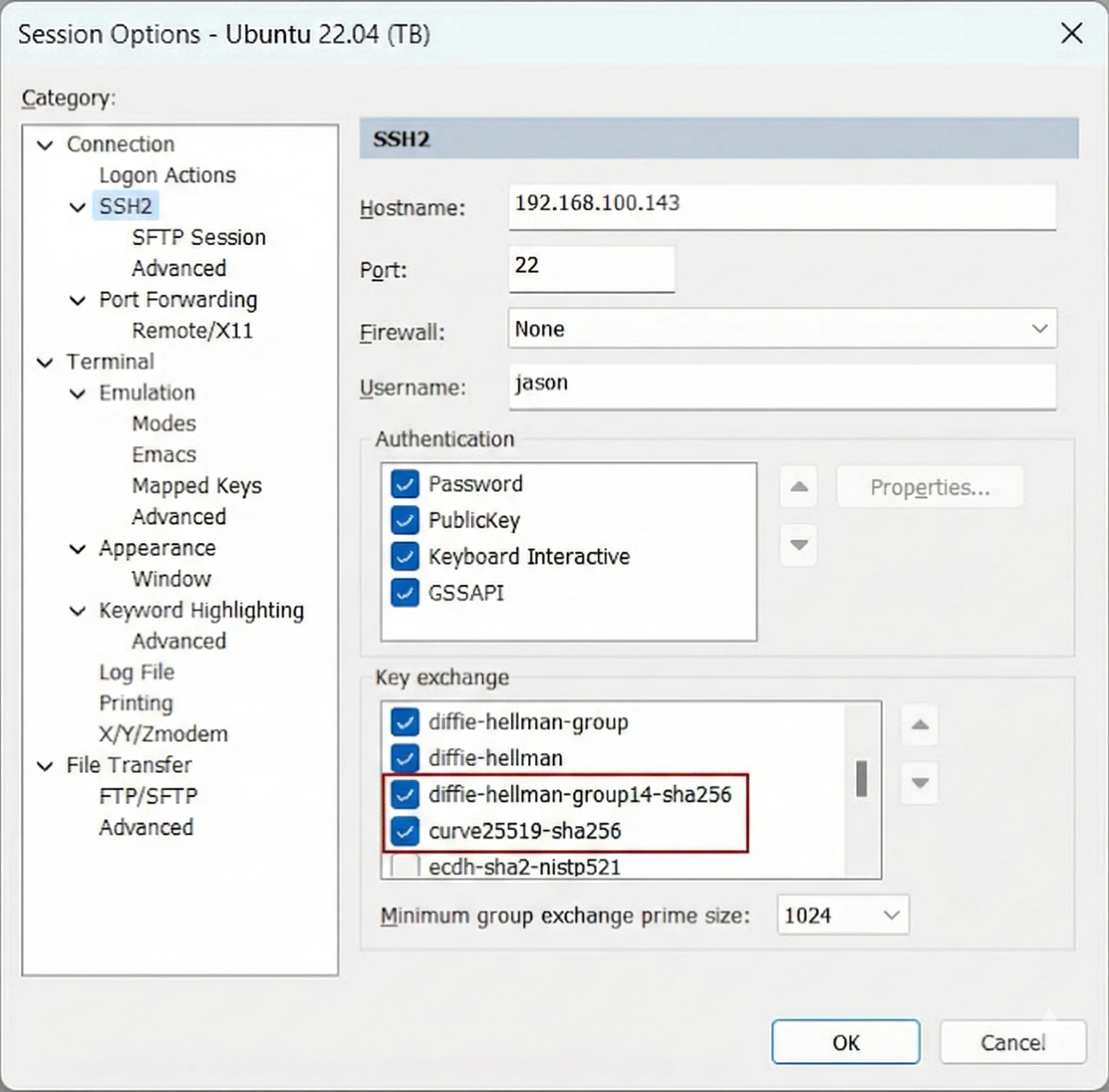
This configuration ensures that SecureCRT offers an algorithm that the OpenSSH server accepts.
Verification
If you have terminal access to the Ubuntu server (e.g., directly or via another terminal), you can verify exactly which Key Exchange algorithms the SSH daemon is configured to accept.
Run the following command on your server:
# Check the running sshd configuration for KexAlgorithms
$ sudo sshd -T | grep kex

gssapikexalgorithms gss-group14-sha256-,gss-group16-sha512-,gss-nistp256-sha256-,gss-curve25519-sha256-,gss-group14-sha1-,gss-gex-sha1-
kexalgorithms sntrup761x25519-sha512@openssh.com,curve25519-sha256,curve25519-sha256@libssh.org,ecdh-sha2-nistp256,ecdh-sha2-nistp384,ecdh-sha2-nistp521,diffie-hellman-group-exchange-sha256,diffie-hellman-group16-sha512,diffie-hellman-group18-sha512,diffie-hellman-group14-sha256
Note: The command ssh -Q KexAlgorithms often seen online lists client-side support, whereas sshd -T confirms the server’s actual active configuration. As seen in the output above, curve25519-sha256 and diffie-hellman-group14-sha256 are explicitly supported by the server.
Conclusion:
Key exchange errors are a common hurdle when connecting legacy clients or specific configurations to modern OpenSSH servers (which have deprecated older algorithms like SHA1). By explicitly enabling modern algorithms like curve25519-sha256 or diffie-hellman-group14-sha256 in your client settings, you can establish a secure and reliable SSH connection.