[Synology] How to Enable SSH and Log in as Root
-
 Jason Yang
 - 02 Dec, 2025
- Updated 04 Jan, 2026
- Views —
![[Synology] How to Enable SSH and Log in as Root](/images/covers/synology_nas_ds916-.webp)
If you need to perform advanced administrative tasks on your Synology NAS (DSM), you will need to enable SSH and access the root account. Follow the steps below.
1. Enable SSH Service
First, you need to turn on the SSH service in the DiskStation Manager (DSM) settings.
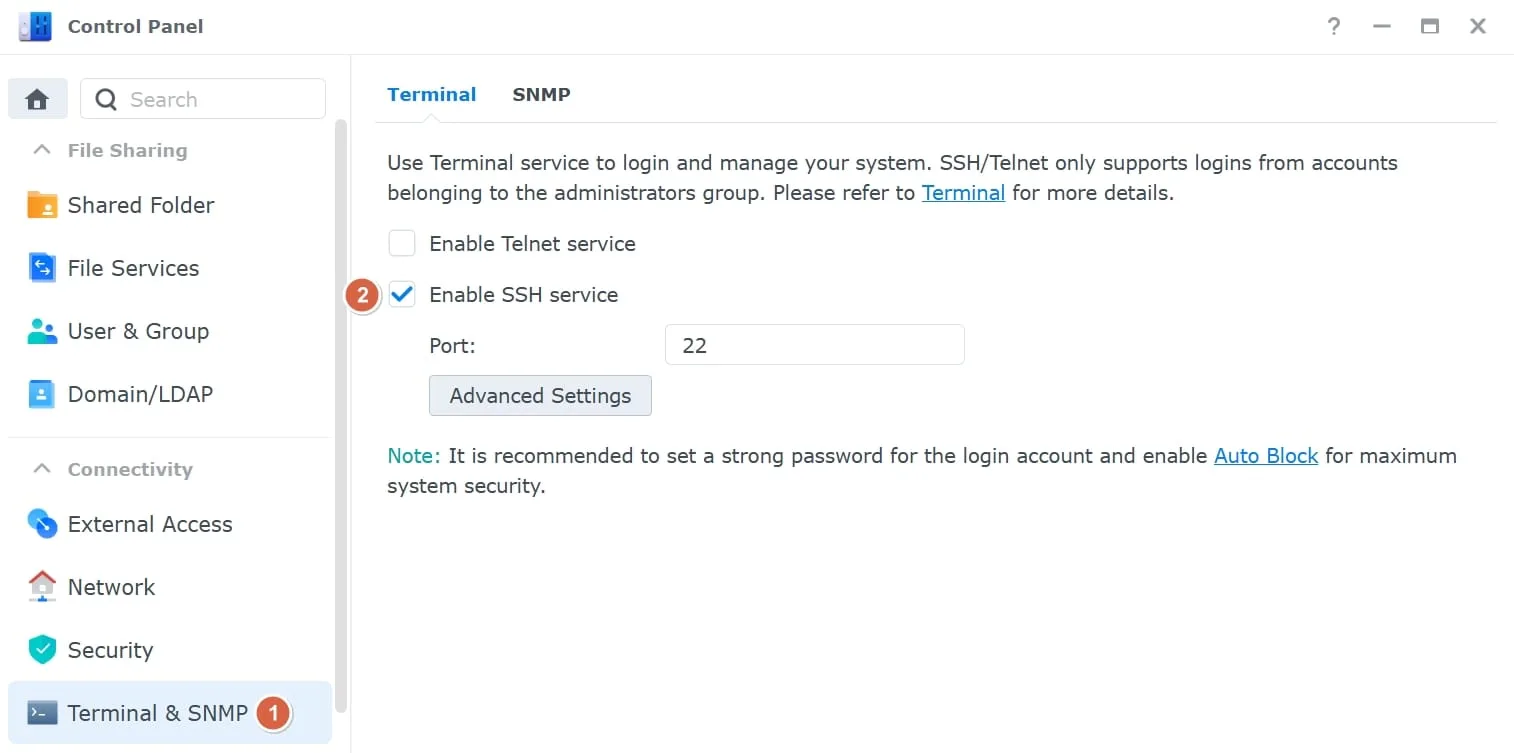
- Path:
Control Panel→Connectivity→Terminal & SNMP - Action: Check the box for Enable SSH service.
- Note: The default port is 22. It is recommended to change this to a different port for security reasons.
2. Login via SSH
Open your terminal (CMD, PowerShell, or Terminal on macOS/Linux) and log in using your administrator account.
ssh your_admin_id@your_nas_ip
# Example: ssh admin@192.168.1.100

Synology strongly advises you not to run commands as the root user, who has
the highest privileges on the system. Doing so may cause major damages
to the system. Please note that if you choose to proceed, all consequences are
at your own risk.

admin@your_nas_name:~$ sudo -i
Password:
admin@your_nas_name:~#
Why sudo -i, not a direct root login
DSM deliberately doesn’t let you SSH in as root directly — there’s no root password to log in with, and that’s on purpose. You connect with your administrator account (a member of the administrators group) and elevate with sudo -i, which opens a full root shell using your admin password. The prompt changing from $ to # confirms you’re now root. That warning DSM prints isn’t boilerplate: as root you can delete packages DSM depends on or break the volume, and DSM won’t stop you.
Lock it down afterward
SSH into a NAS is a real attack surface, so treat it like one:
- Change the port. Move it off
22in the same settings panel — it won’t stop a targeted attacker, but it cuts the constant background scanning of port 22. - Prefer keys over passwords. Drop your public key into
~/.ssh/authorized_keysfor the admin user and you can disable password auth entirely. - Turn SSH back off when you’re done. If you only enabled it for a one-off task, uncheck Enable SSH service afterward. A NAS holding your data shouldn’t leave an admin shell exposed 24/7 for a job you finished last week.