How to Resolve ACPI Errors When Installing Ubuntu 22.04 on ASUS GA502GU-PB73
-
 Jason Yang
 - 29 Nov, 2025
- Updated 04 Jan, 2026
- Views —

While attempting to install Ubuntu 22.04 on ASUS GA502GU-PB73, the installation process halts with ACPI BIOS errors, specifically “ACPI BIOS Error (bug): Could not resolve symbol”. This indicates a potential incompatibility with certain hardware components or incorrect BIOS/UEFI settings.
ASUS does not officially support Linux distributions like Ubuntu, so the exact cause of issues cannot be clearly identified.
However, it’s possible that some hardware components in this laptop may not be fully compatible with certain Linux distributions or kernel versions. Additionally, problems related to ACPI (Advanced Configuration and Power Interface) can occur if the BIOS or UEFI settings are not configured correctly.
[ 4.689445] amdgpu 0000:05:00.0: amdgpu: ring comp_1.3.0 uses VM inv eng 8 on hub 0
[ 4.689454] amdgpu 0000:05:00.0: amdgpu: ring comp_1.0.1 uses VM inv eng 9 on hub 0
[ 4.689463] amdgpu 0000:05:00.0: amdgpu: ring comp_1.1.1 uses VM inv eng 10 on hub 0
[ 4.689472] amdgpu 0000:05:00.0: amdgpu: ring comp_1.2.1 uses VM inv eng 11 on hub 0
[ 4.689481] amdgpu 0000:05:00.0: amdgpu: ring comp.1.3.1 uses VM inv eng 12 on hub 0
[ 4.689491] amdgpu 0000:05:00.0: amdgpu: ring kiq_2.1.0 uses VM inv eng 13 on hub 0
[ 4.689500] amdgpu 0000:05:00.0: amdgpu: ring sdmao uses VM inv eng 0 on hub 1
[ 4.689508] amdgpu 0000:05:00.0: amdgpu: ring vcn_dec uses VM inv eng 1 on hub 1
[ 4.689517] amdgpu 0000:05:00.0: amdgpu: ring vcn_enco uses VM inv eng 4 on hub 1
[ 4.689526] amdgpu 0000:05:00.0: amdgpu: ring vcn_enc1 uses VM inv eng 5 on hub 1
[ 4.689535] amdgpu 0000:05:00.0: amdgpu: ring jpeg_dec uses VM inv eng 6 on hub 1
[ 4.695968] [drm] Initialized amdgpu 3.49.0 20150101 for 0000:05:00.0 on minor 1
[ 4.704352] fbcon: amdgpudrmfb (fb0) is primary device
[ 4.712686] Console: switching to colour frame buffer device 240×67
[ 4.732152] amdgpu 0000:05:00.0: [drm] fb0: amdgpudrmfb frame buffer device
[ 5.381712] sd 0:0:0:0: Attached scsi generic sgo type o
[ 4.788724] input: ASUSTeK Computer Inc. N-KEY Device as /devices/pci0000:00/0000:00:08.1/0000:05:00.3/usb3/3-1/3-1:1.1/0003:0805:1866.0003/input/input 15
[ 4.848808] asus 0003:0B05:1866.0003: input,hidraw2: USB HID v1.10 Keyboard [ASUSTeK Computer Inc. N-KEY Device] on usb-0000:05:00.3-1/input1
[ 4.957329] asus 0003:0B05:1866.0004: Asus initialise N-KEY Device
[ 4.971458] input: ASUSTeK Computer Inc. N-KEY Device as /devices/pci0000:00/0000:00:08.1/0000:05:00.3/usb3/3-1/3-1:1.2/0003:0B05:1866.0004/input/input16
[ 5,028541] asus 0003:0805:1866.0004: input,hiddevo, hidraw3: USB HID v1.10 Device [ASUSTeK Computer Inc. N-KEY Device] on usb-0000:05:00.3-1/input2
[ 5.381213] scsi 0:0:0:0: Direct-Access SanDisk Ultra 1.00 PQ: 0 ANSI: 6
[ 5.382058] sd 0:0:0:0: [sda] 31266816 512-byte logical blocks: (16.0 GB/14.9 GiB) 5.382878] sd 0:0:0:0: [sda] Write Protect is off
[ 5.382916] sd 0:0:0:0: [sda] Mode Sense: 43 00 00 00
[ 5.383357] sd 0:0:0:0: [sda] Write cache: disabled, read cache: enabled, doesn't support DPO or FUA
[ 5.386330] sda: sda1
[ 5.386477] sd 0:0:0:0: [sda] Attached SCSI removable disk
[ 12.640685] ACPI BIOS Error (bug): Could not resolve symbol (SB.PCIO.SBRG.ECO._QEB. TEMF), AE_NOT_FOUND (20221020/psargs-330)
[ 12.640761]
[ 12.640774] No Local Variables are initialized for Method (CEB)
[ 12.640800]
[ 12.640811] No Arguments are initialized for method (QEB)
[ 12.640833]
[ 12.640845] ACPI Error: Aborting method SB.PCIO,SBRG, ECO, QEB due to previous error (AE_NOT_FOUND) (20221020/psparse-529)
Step 1: Temporary Fix in GRUB
To proceed with the installation, you need to modify the boot parameters:
- Boot from the Ubuntu installation USB.
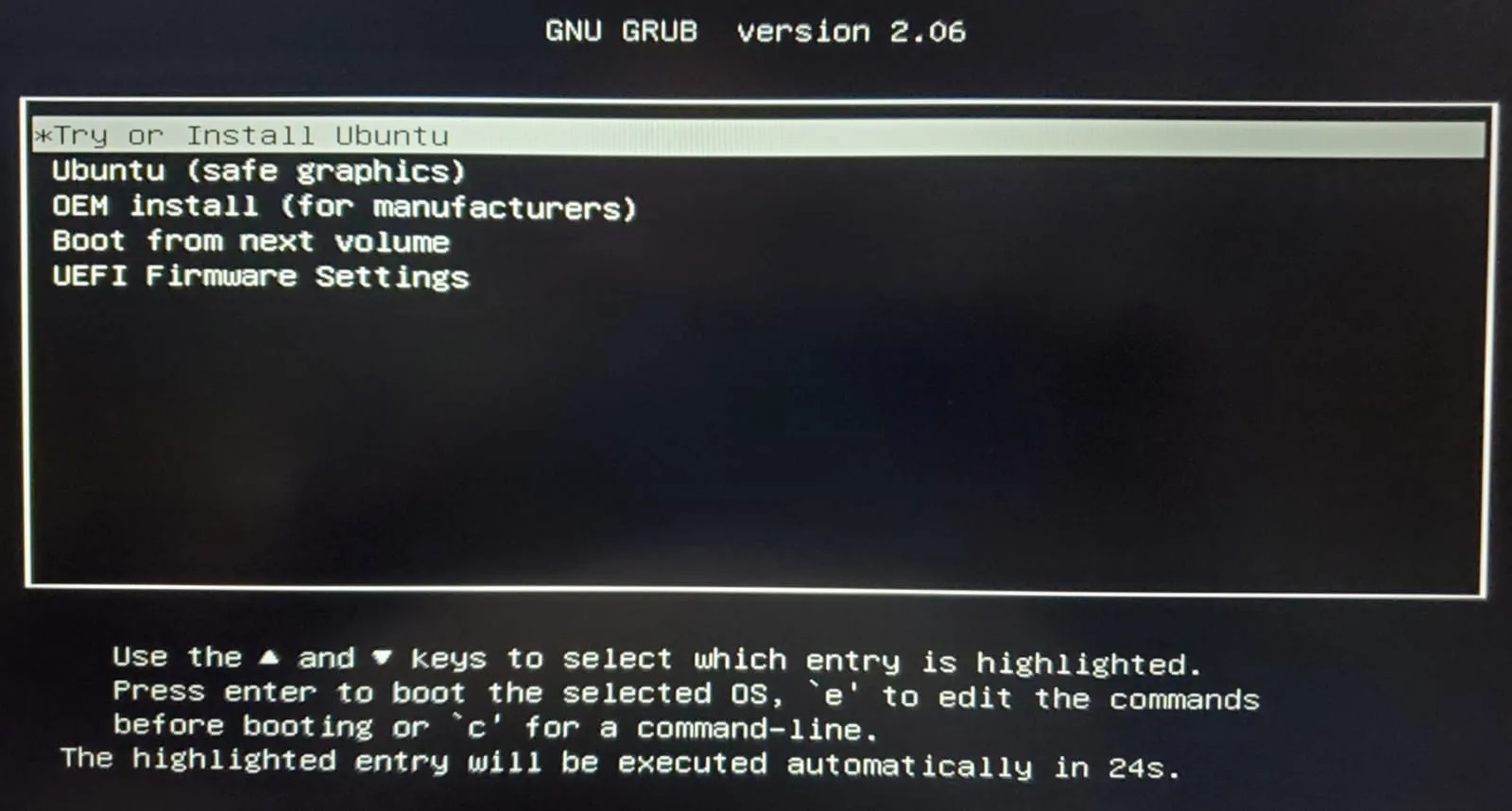
- At the GNU GRUB menu, select “Try or Install Ubuntu”.
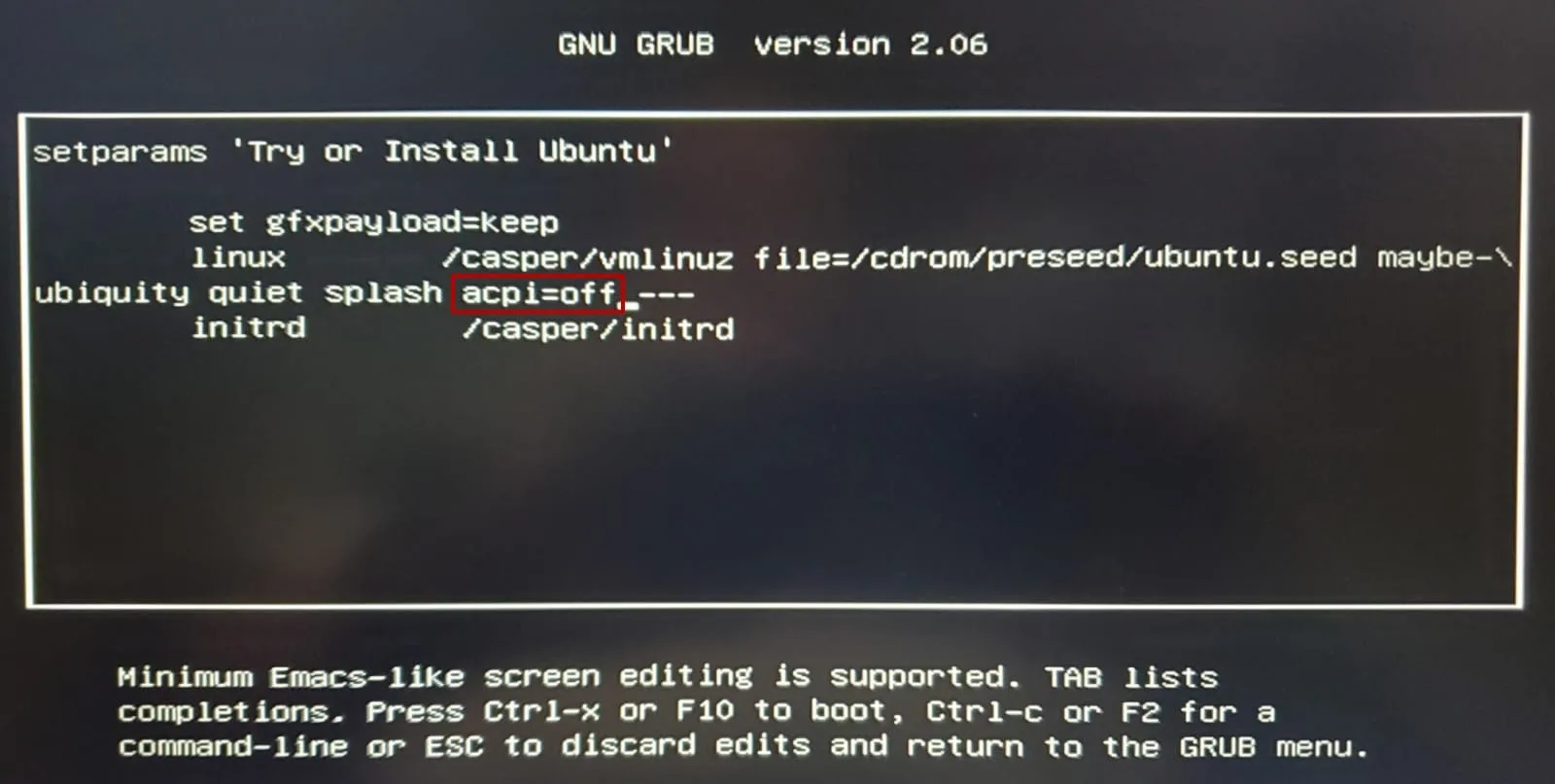
- Press ‘e’ to enter the GRUB bootloader edit mode.
- Add acpi=off at the end of the command line.
- Proceed with the installation.
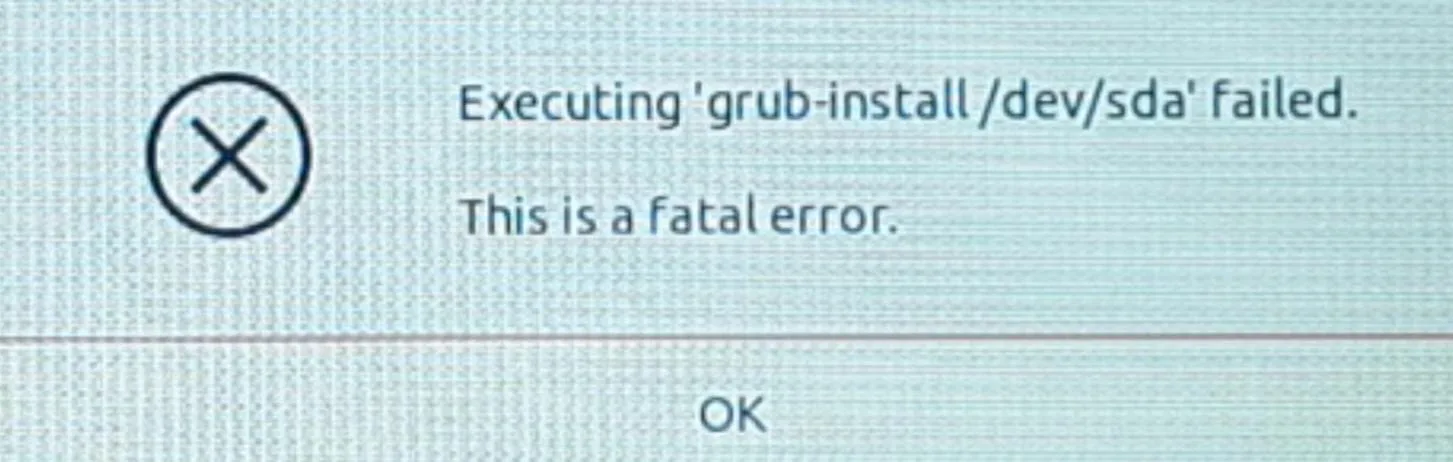
However, towards the final stages of installation, there can be a failure in configuring GRUB. When this happens, only the GRUB prompt appears upon restarting
Step 2: Dealing with GRUB Post-Installation
Post-installation, the system might fail to configure GRUB correctly and only the GRUB prompt appears upon restart.To fix this:
- Boot from the Ubuntu installation USB again.
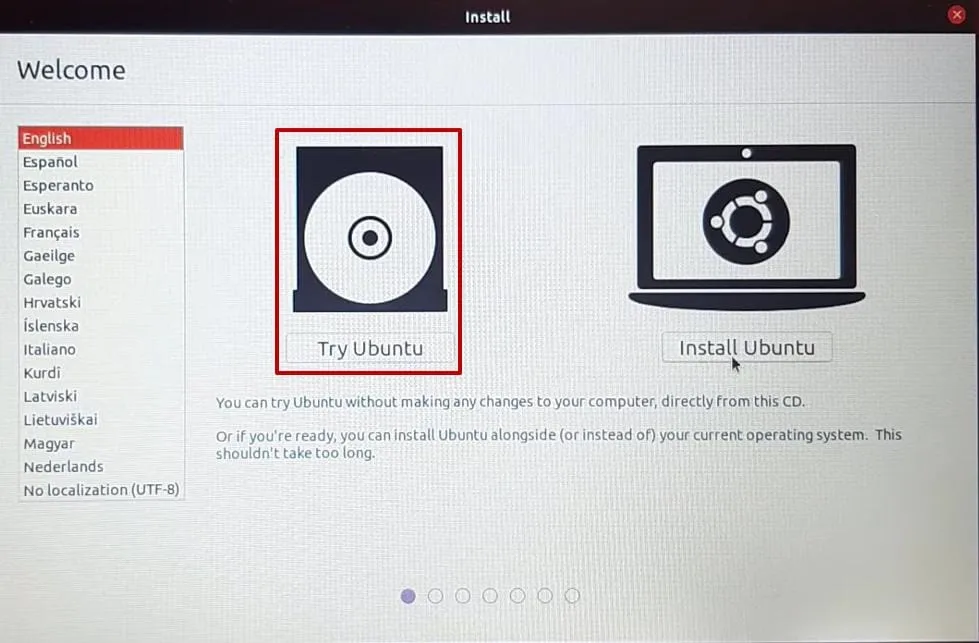
- Install and run Boot Repair with the following commands:
# sudo apt-add-repository ppa:yannubuntu/boot-repair
# sudo apt-get update
# sudo apt-get install -y boot-repair
Step 3: Repair Grub using “Boot Repair”
- Run Boot Repair through Launcher or terminal
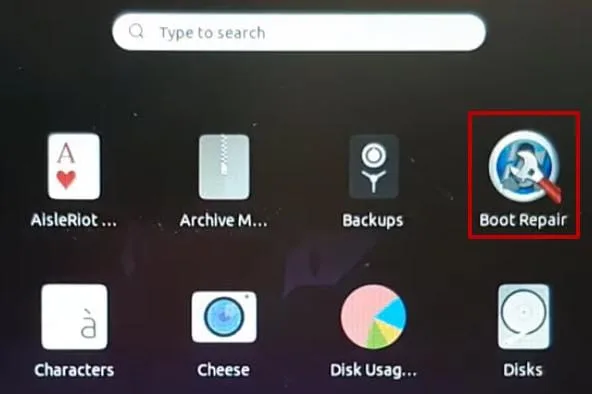
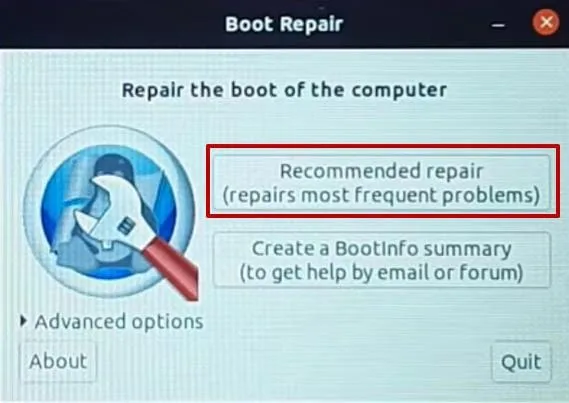
# boot-repair- In Boot Repair, select ‘Recommended Repair’, and Restart your system.
What acpi=off actually does — and why you don’t want to keep it
acpi=off gets you past the install, but understand the hammer you’re swinging. ACPI is how Linux talks to the firmware about power: battery status, thermal zones, fan control, sleep/suspend, and CPU frequency scaling. Turning it off entirely can disable or degrade all of that — typically no battery readout, weak thermal/fan control, and no suspend (the exact fallout varies by hardware and driver). Fine for a one-time installer, miserable as a daily driver.
So use it to get installed, then dial it back. After the system boots, edit the permanent kernel command line:
sudo vi /etc/default/grubTry a narrower parameter instead of the blanket acpi=off. These aren’t interchangeable “lighter” versions — each changes a different thing, so test one at a time: acpi_osi=Linux alters how the firmware’s _OSI queries are answered, pci=noacpi changes PCI IRQ routing, acpi=noirq stops ACPI from routing interrupts. Better yet, check for a BIOS update and a newer kernel first — a firmware fix often resolves the ACPI table bug outright and lets you drop these flags entirely:
GRUB_CMDLINE_LINUX_DEFAULT="quiet splash acpi_osi=Linux"Then apply it and reboot:
sudo update-grub
sudo reboot
Test each option until the machine boots cleanly with power management working. The goal is the least-aggressive flag that avoids the Could not resolve symbol error — full acpi=off should be your last resort, not your final config. (Sometimes the real fix is a firmware update — see updating an ASUS BIOS, since a newer BIOS can resolve the ACPI table bug outright.)