Generate Speaker-Labeled Subtitles with Whisper and pyannote.audio on Ubuntu 24.04
-
 Jason Yang
 - 03 Jan, 2026
- Updated 04 Jan, 2026
- Views —
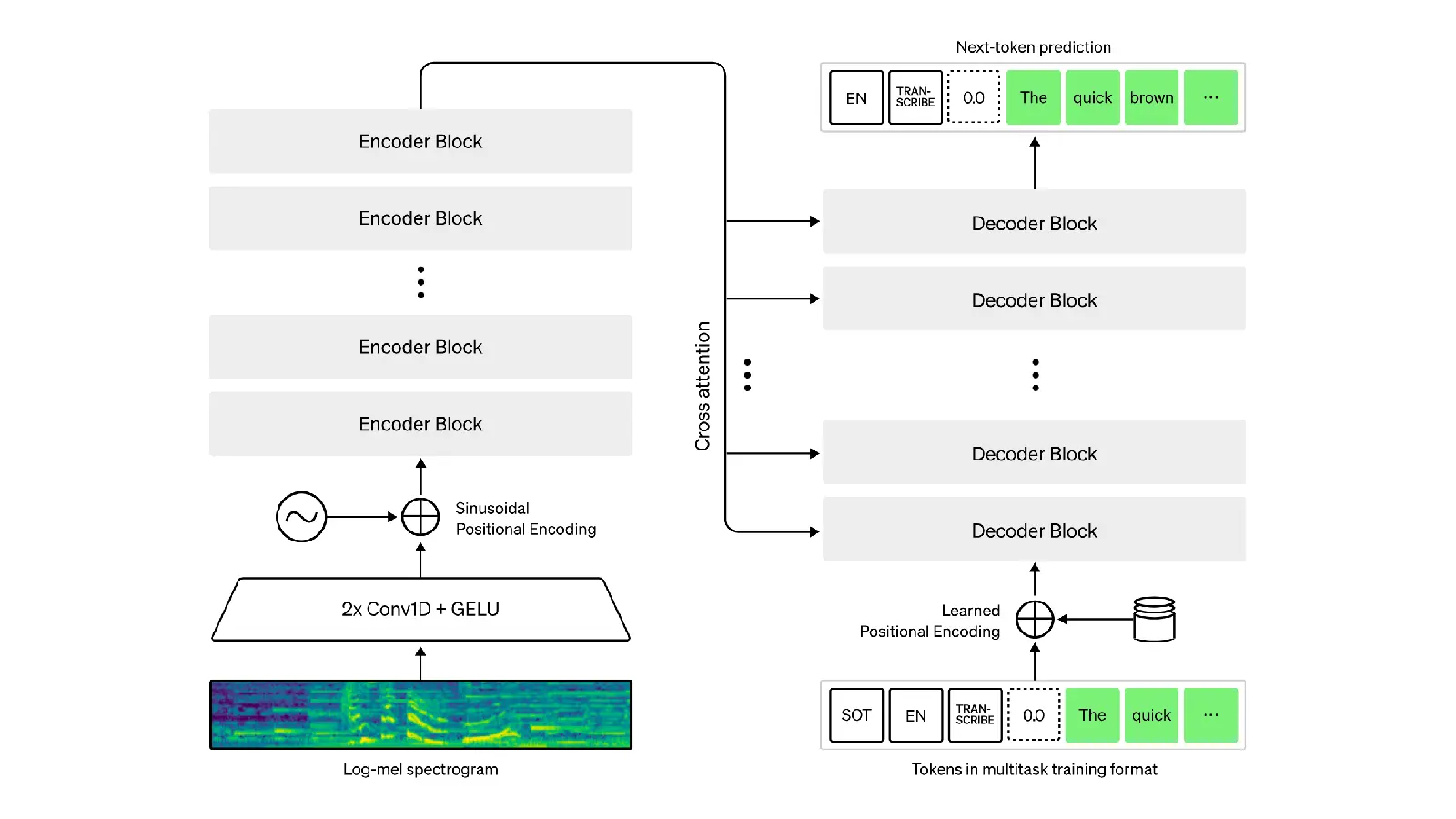
This guide walks through a fully working setup for generating speaker-labeled subtitles from an audio file using OpenAI Whisper (speech-to-text) and pyannote.audio (speaker diarization) on Ubuntu 24.04 with NVIDIA GPU support.
The final output combines transcribed text + speaker labels, which can be used directly or converted into subtitle formats such as SRT or VTT.
Why This Setup Is Tricky on Ubuntu 24.04
Ubuntu 24.04 ships with Python 3.12 by default.
However, the Whisper + pyannote.audio ecosystem is most stable today on Python 3.10, especially when using CUDA-enabled PyTorch builds.
Although pyannote.audio 3.x works with PyTorch 2.x, Python 3.10 remains the safest and most widely tested choice for this stack.
Step 1: Install Python 3.10 (Manual)
Install Python 3.10 alongside the system Python:
How to Install Python 3.10 on Ubuntu 24.04
Make sure python3.10 is available before continuing.
Step 2: Create and Activate a Virtual Environment
python3.10 -m venv whisper_env
source whisper_env/bin/activate
Step 3: Install PyTorch with CUDA Support
My laptop uses an NVIDIA GeForce GTX 1660.
The installed driver reports CUDA 12.8, so I installed the cu121 PyTorch build, which is fully compatible.
pip install torch==2.5.1+cu121 torchaudio==2.2.1+cu121 \
  --extra-index-url https://download.pytorch.org/whl/cu121
CUDA Compatibility Check
Verify your driver CUDA version:
nvidia-smiExample output:
CUDA Version: 12.8As long as the driver CUDA version is greater than or equal to the PyTorch build version (cu121 = CUDA 12.1), everything will work correctly.
Step 4: Install pyannote.audio and Dependencies
pip install pyannote.audio==3.1.1 numpy scipy librosa huggingface_hubNote
Although pyannote.audio was originally developed with older PyTorch versions, pyannote.audio 3.1.1 works correctly with PyTorch 2.5.x in practice.
Step 5: Install Whisper (Without Overriding torch)
pip install git+https://github.com/openai/whisper.git --upgrade --no-depsThe --no-deps option is important.
It prevents pip from downgrading or replacing your CUDA-enabled PyTorch installation.
Step 6: Hugging Face Access Token
Create a token at: https://hf.co/settings/tokens
Then log in from Python:
from huggingface_hub import login
login("hf_your_token_here")
Step 7: Accept Model User Conditions
You must manually accept the license terms for these models:
pyannote/speaker-diarization-3.1pyannote/segmentation-3.0
Open each model page on Hugging Face and click “Agree”.
Skipping this step will result in authentication errors.
Step 8: Run Whisper + pyannote.audio Together
from pyannote.audio import Pipeline
import whisper
import json

# Speaker diarization
pipeline = Pipeline.from_pretrained(
    "pyannote/speaker-diarization-3.1",
    use_auth_token="hf_your_token_here"
)
diarization = pipeline("test.wav")

# Speech-to-text (GPU explicitly enabled)
model = whisper.load_model("base", device="cuda")
whisper_result = model.transcribe("test.wav")

# Merge diarization with transcription
def get_speaker(start_time, end_time, diarization):
    for turn, _, speaker in diarization.itertracks(yield_label=True):
        overlap = max(0, min(end_time, turn.end) - max(start_time, turn.start))
        if overlap > (end_time - start_time) * 0.5:
            return speaker
    return "Unknown"

merged = []
for seg in whisper_result["segments"]:
    speaker = get_speaker(seg["start"], seg["end"], diarization)
    merged.append({
        "speaker": speaker,
        "start": seg["start"],
        "end": seg["end"],
        "text": seg["text"]
    })

with open("test_stt_merged.json", "w") as f:
    json.dump(merged, f, indent=2)
Output Format
This script generates a JSON-based subtitle structure:
{
  "speaker": "SPEAKER_00",
  "start": 11.2,
  "end": 19.36,
  "text": "How are you this morning?"
}
Although the output is JSON, it can be easily converted to SRT or VTT formats for video subtitles.
Notes on Accuracy and Performance
- Whisper model size
base: fast, good for demossmall/medium: better accuracy, slower
- Speaker diarization
- Short or overlapping speech segments may occasionally be assigned to the wrong speaker
- Accuracy improves with longer, clearer speech segments
- GPU usage
- Always specify
device="cuda"to ensure GPU acceleration - GTX 1660 performs well for
baseandsmallmodels
- Always specify
Final Thoughts
This setup provides a reliable and reproducible pipeline for:
- Speech-to-text with Whisper
- Speaker diarization with pyannote.audio
- Speaker-labeled subtitle generation on Ubuntu 24.04
If you are building meeting transcripts, interviews, medical dictation, or multilingual subtitles, this workflow offers a strong balance between accuracy and performance.