How to Install NVIDIA Driver on Ubuntu 24.04 (GTX 1660 Ti Laptop): Solving Dependency Conflicts
-
 Jason Yang
 - 04 Jan, 2026
- Views —
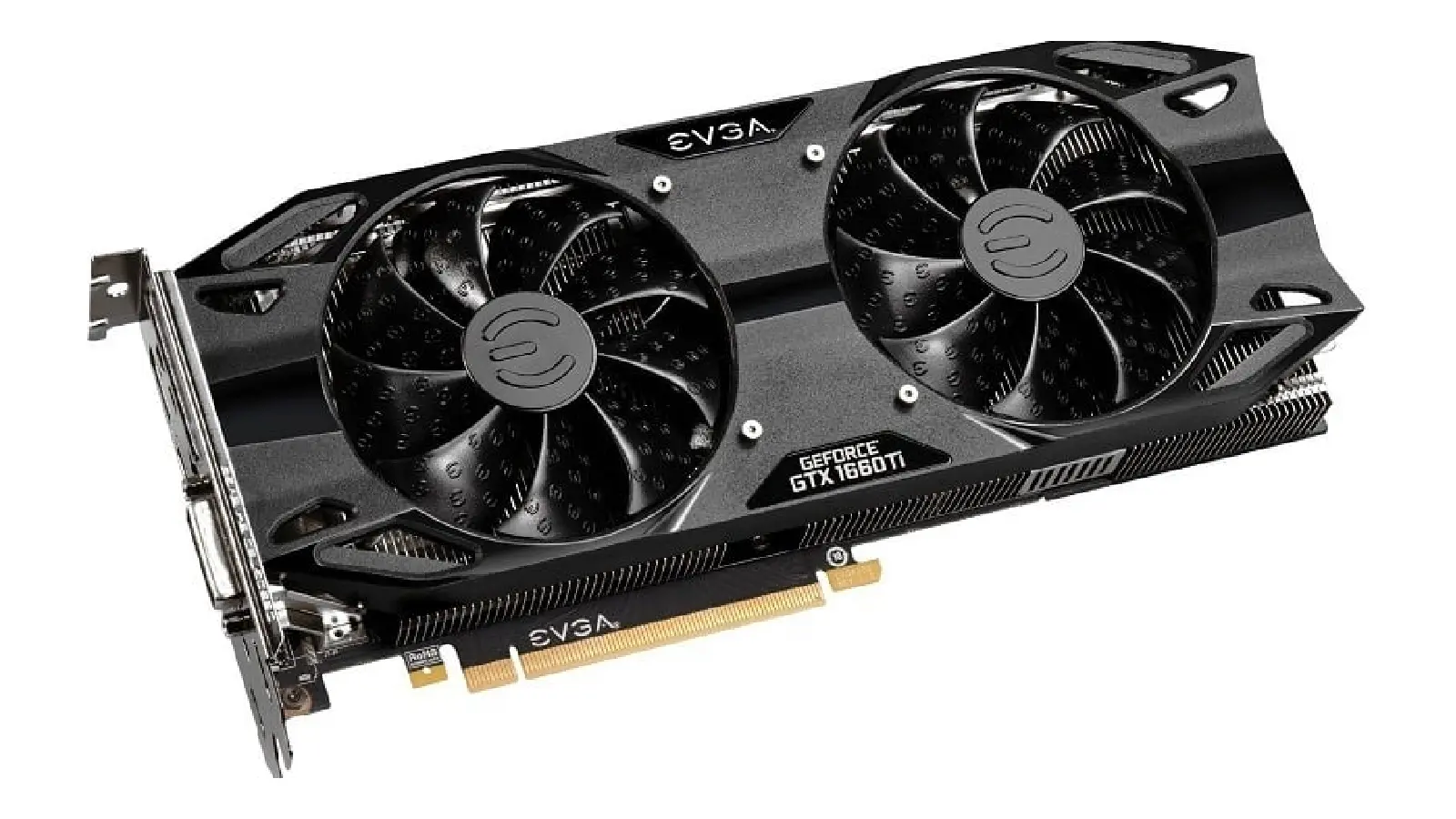
Installing NVIDIA drivers on Ubuntu 24.04 can be tricky due to dependency conflicts between newer versions (e.g., 570, 580) or GUI tool errors in Wayland environments. This guide provides the most reliable path to a stable GPU-accelerated environment for AI development (PyTorch, Whisper, etc.) using a CLI-centric approach.
1. Verify Hardware Recognition
First, confirm that your system detects the NVIDIA GPU correctly.
$ lspci | grep -i nvidia
01:00.0 VGA compatible controller: NVIDIA Corporation TU116M [GeForce GTX 1660 Ti Mobile] (rev a1)
01:00.1 Audio device: NVIDIA Corporation TU116 High Definition Audio Controller (rev a1)
01:00.2 USB controller: NVIDIA Corporation TU116 USB 3.1 Host Controller (rev a1)
01:00.3 Serial bus controller: NVIDIA Corporation TU116 USB Type-C UCSI Controller (rev a1)
2. Perform a Clean Purge
If you encountered the error E: Error, pkgProblemResolver::Resolve generated breaks, it means your package dependencies are conflicted. The best solution is to completely remove all existing NVIDIA packages.
# Remove all nvidia-related packages and configurations
sudo apt purge "^nvidia-.*"
sudo apt purge "^libnvidia-.*"

# Clean up unnecessary dependencies
sudo apt autoremove && sudo apt autoclean
3. Install Stable Driver (Version 535)
For AI developers, the latest version isn’t always the best. In Ubuntu 24.04, Version 535 is a Long-Term Support (LTS) branch that offers the best compatibility with CUDA-enabled libraries.
sudo apt update
sudo apt install nvidia-driver-535 nvidia-dkms-535
4. Laptop-Specific Tuning (GPU Profile)
On laptops (especially high-performance models like ASUS ROG), you must ensure the discrete GPU is set as the primary device.
sudo prime-select nvidia
sudo reboot
⚠️ Important: During reboot, if the Perform MOK management screen appears, select
Enroll MOKto register the driver keys. Otherwise, the kernel will block the driver from loading.
5. Why We Skip nvidia-settings
Ubuntu 24.04 uses Wayland as the default display server. Since nvidia-settings was designed for the older X11 (Xorg) system, it often throws the error The control display is undefined. To keep your system lean and stable, we recommend using the powerful CLI tool nvidia-smi instead.
# Real-time monitoring (refreshes every second)
$ watch -n 1 nvidia-smi

Sat Jan  3 23:26:24 2026
+---------------------------------------------------------------------------------------+
| NVIDIA-SMI 535.274.02             Driver Version: 535.274.02   CUDA Version: 12.2     |
|-----------------------------------------+----------------------+----------------------+
| GPU  Name                 Persistence-M | Bus-Id        Disp.A | Volatile Uncorr. ECC |
| Fan  Temp   Perf          Pwr:Usage/Cap |         Memory-Usage | GPU-Util  Compute M. |
|                                         |                      |               MIG M. |
|=========================================+======================+======================|
|   0  NVIDIA GeForce GTX 1660 ...    Off | 00000000:01:00.0 Off |                  N/A |
| N/A   49C    P8               8W /  60W |     59MiB /  6144MiB |      0%      Default |
|                                         |                      |                  N/A |
+-----------------------------------------+----------------------+----------------------+

+---------------------------------------------------------------------------------------+
| Processes:                                                                            |
|  GPU   GI   CI        PID   Type   Process name                            GPU Memory |
|        ID   ID                                                             Usage      |
|=======================================================================================|
|    0   N/A  N/A      1704      G   /usr/lib/xorg/Xorg                           49MiB |
|    0   N/A  N/A      1899      G   /usr/bin/gnome-shell                          7MiB |
+---------------------------------------------------------------------------------------+
6. Poetry 2.0 Configuration for PyTorch
When setting up a virtual environment with Poetry 2.0 on Python 3.12+, you might face version conflicts with dependencies like triton. Here is how to configure your pyproject.toml correctly.
Key pyproject.toml Settings
[project]
name = "gpu-test"
version = "0.1.0"
# Restrict Python version to avoid Triton compatibility issues
requires-python = ">=3.12,<3.15"

[tool.poetry]
# Disable package mode for simple scripts/apps
package-mode = false

[build-system]
requires = ["poetry-core>=2.0.0,<3.0.0"]
build-backend = "poetry.core.masonry.api"
Installation & Verification
# Add dependencies
poetry add torch numpy

# Test CUDA recognition
$ poetry run python -c "import torch; print(f'CUDA Recognition Success: {torch.cuda.is_available()}')"

CUDA Recognition Success: True
7. Final GPU Tensor Operation Test
Verify that tensors are actually being processed in the GPU VRAM.
$ poetry run python -c "import torch; x = torch.ones(3, 3).to('cuda'); print(f'Computing Device: {x.device}')"

Computing Device: cuda:0
Expected Output: Computing Device: cuda:0
Summary
- Purge: Completely remove broken/conflicting drivers.
- Stable (535): Opt for the proven 535 version over experimental ones.
- No GUI: Use
nvidia-smiinstead ofnvidia-settingsto avoid Wayland issues. - Poetry 2.0: Use
package-mode = falseand set strict Python version constraints.