A Guide to Automating Connections with SecureCRT Logon Scripts
-
 Jason Yang
 - 26 Nov, 2025
- Updated 04 Jan, 2026
- Views —

Developers and system administrators often repeat the daily process of connecting to multiple servers via SSH or Telnet. SecureCRT’s “Logon Actions” (or “Logon Scripts”) feature is a useful tool that automates these repetitive connection procedures, reducing wasted time and significantly improving work efficiency.
I personally used this feature because I found the process of connecting to a PostgreSQL database to be tedious every time.
In addition to database connections, this feature is also very useful when you need to connect to a final destination server through an intermediary server, often for security reasons. For example, the true value of this feature becomes apparent in a “jump server” environment, where you must first log into Server A via SSH and then, from there, initiate another Telnet or SSH connection to Server B.
Step 1: Create the Python Script File
Create a python code file with a .py extension. It’s recommended to create a dedicated folder for your scripts.
- File Name:
psql_testdb_login.py - Location:
C:\Users\abc\AppData\Roaming\VanDyke\Scripts
# $language = "python"
# $interface = "1.0"

def main():
	# Set a 10-second timeout to prevent the script from hanging indefinitely.
	timeout_seconds = 1

	# The 'crt' object is used to interact with the SecureCRT terminal screen.
	scr = crt.Screen

	# --- Modify this section to match your environment ---
	prompt_string = "tb@Laptop:~$"
	psql_command = "psql -U apptest -d testdb -h 127.0.0.1 -p 5432\r"
	password_prompt = "Password for user apptest:"
	password = "Password\r" # '\r' represents the Enter key
	# ----------------------------------------------------

	try:
		# 1. Wait for the shell prompt to appear after a successful SSH login.
		scr.WaitForString(prompt_string, timeout_seconds)
		crt.Sleep(100) # Wait 0.1 seconds to ensure the prompt is fully rendered.

		# 2. Send the psql command.
		scr.Send(psql_command)

		# 3. Wait for the password prompt.
		scr.WaitForString(password_prompt, timeout_seconds)
		crt.Sleep(100) # Wait 0.1 seconds.

		# 4. Send the password.
		scr.Send(password)

		crt.Session.SetStatusText("psql auto-login script completed successfully.")

	except ScriptError:
		# A ScriptError occurs if WaitForString times out.
		error_message = "Error: Timed out waiting for an expected string.\n\n"
		error_message += "Please verify that the prompt strings in the script match what is displayed in your terminal."
		crt.Dialog.MessageBox(error_message)
		crt.Session.SetStatusText("psql auto-login script failed.")

# Call the main function to run the script.
main()
Step 2: Link the Script to a SecureCRT Session
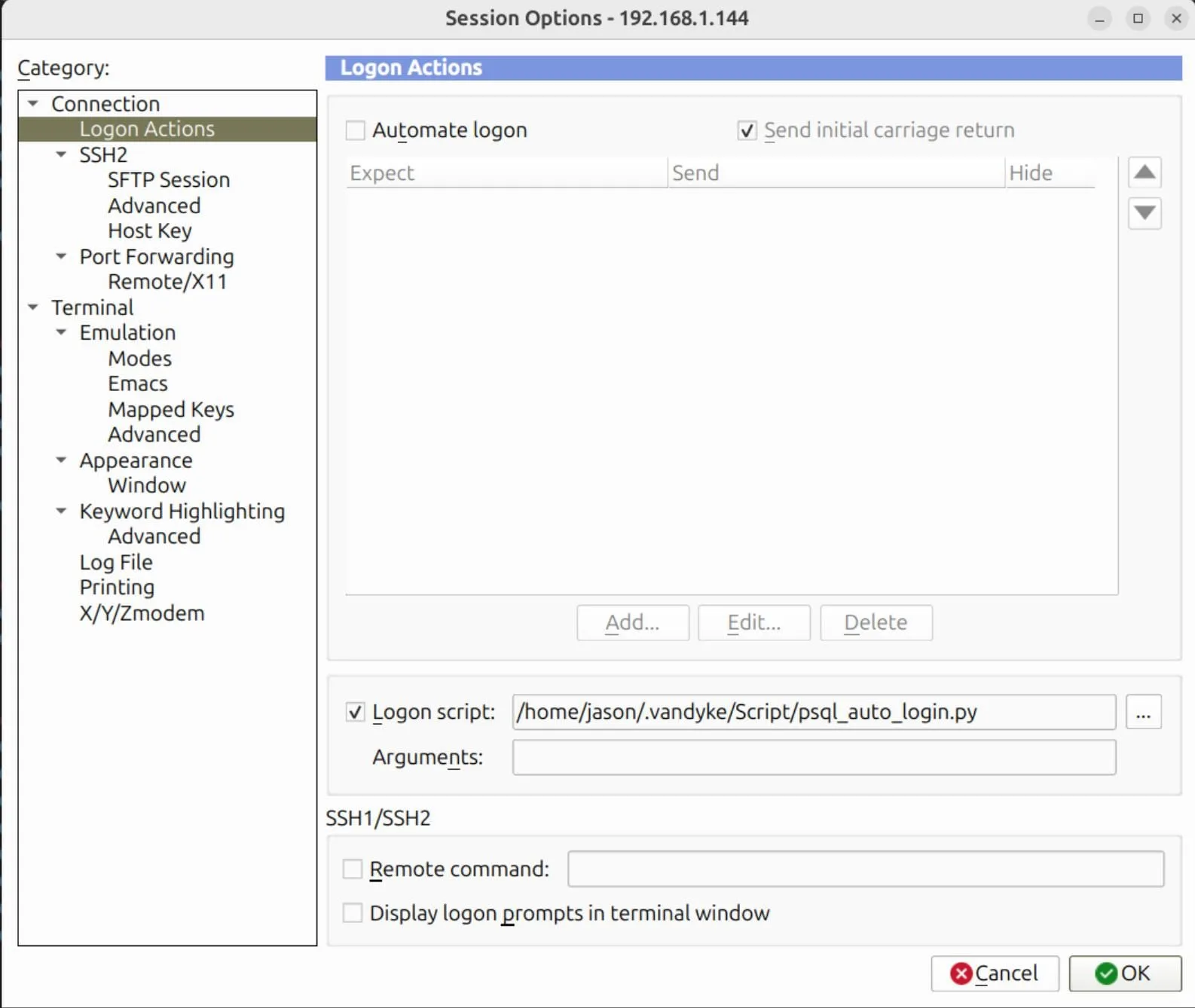
- In SecureCRT, right-click on the session you want to automate and select
Properties. - In the
Session Optionswindow, navigate to theConnection>Logon Actionscategory on the left. - In the
Logon scriptgroup on the right, enable theLogon scriptcheckbox. - Click the
...button to browse your file system and select thepsql_auto_login.pyfile you saved in the previous step. - Click
OKto save your changes.
Step 3. How to Use
Once configured, simply connect to the session as you normally would. After the SSH connection is established, the script will automatically run and log you into the PostgreSQL database.
⚠️ IMPORTANT SECURITY WARNING
- This method stores your database password in a plaintext script file. This is a significant security risk. This guide is intended for convenience in trusted, non-production development environments only.
- DO NOT use this method for production servers or databases containing sensitive information.